TripPlot user guide
TripPlot keeps one trip in one place: the spots you want to see, the day-by-day plan, the money, and the story of the trip once you're there. This guide follows one trip — Pattaya 2026 — through every screen. Nothing here needs technical knowledge.
Inside TripPlot, Help in the top bar — or the Help button in any panel — opens the part of this guide for what you're doing, next to your work. Tap any screenshot to enlarge it.
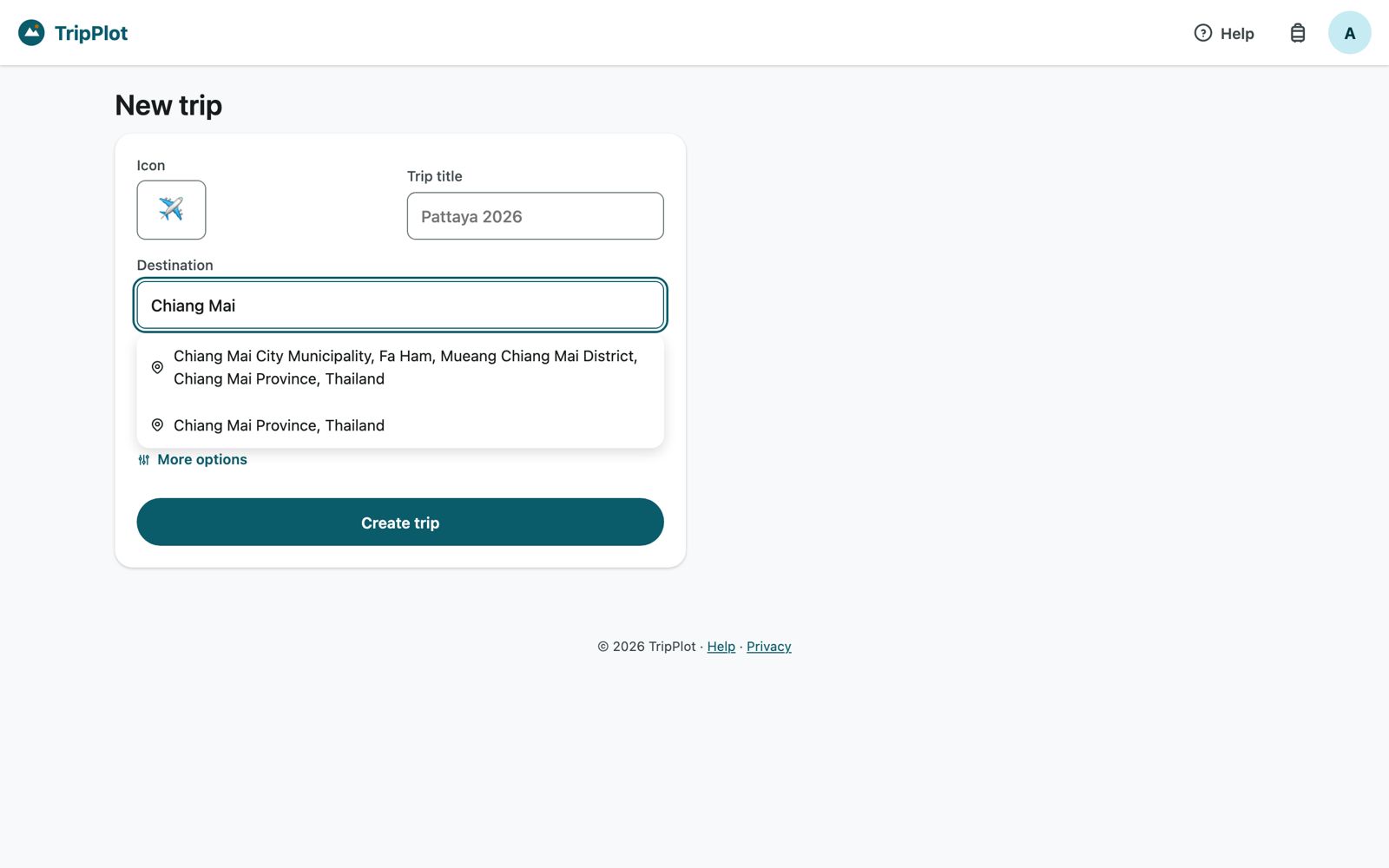 Create a tripWhere and when
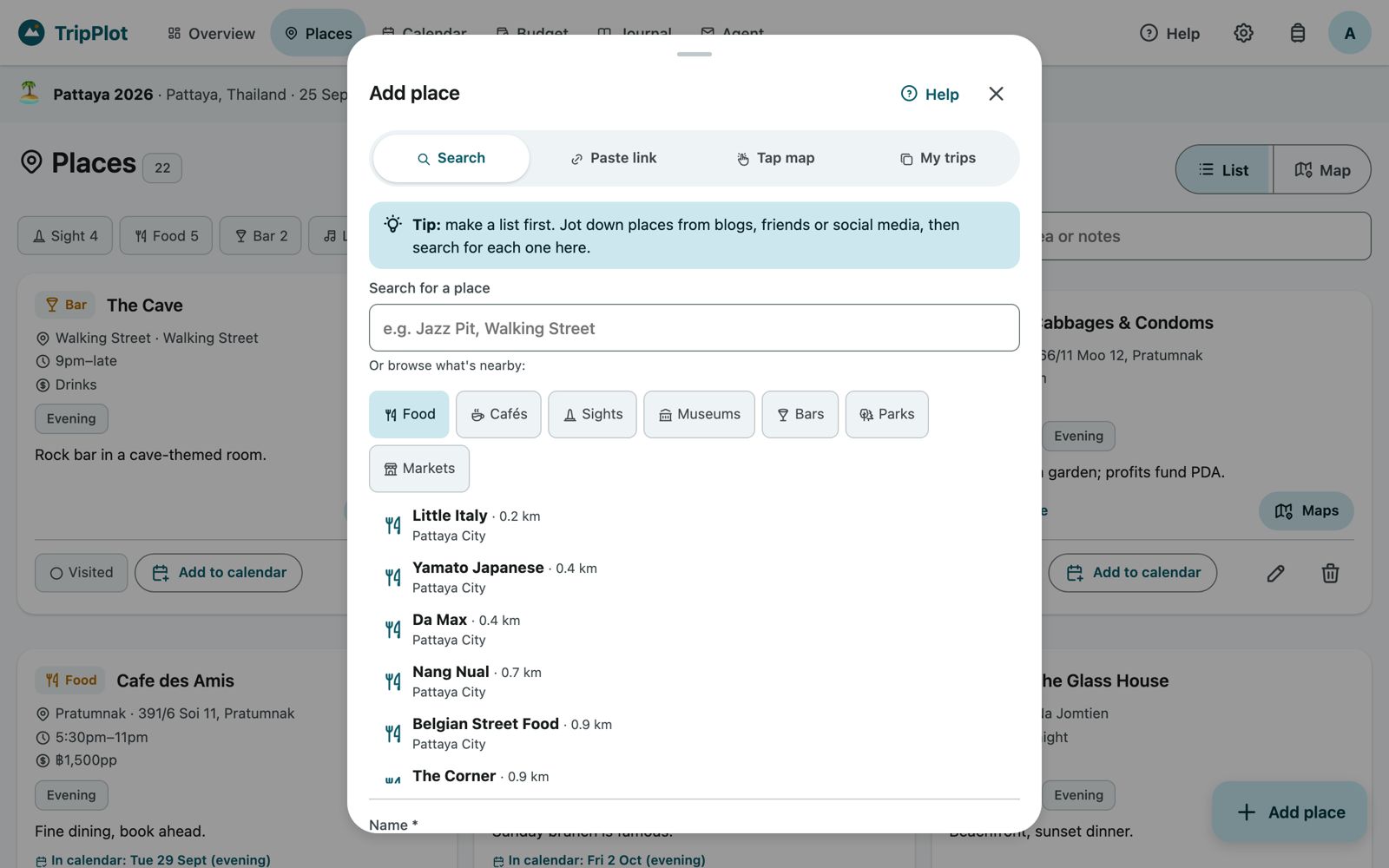 Collect placesSearch, browse, paste
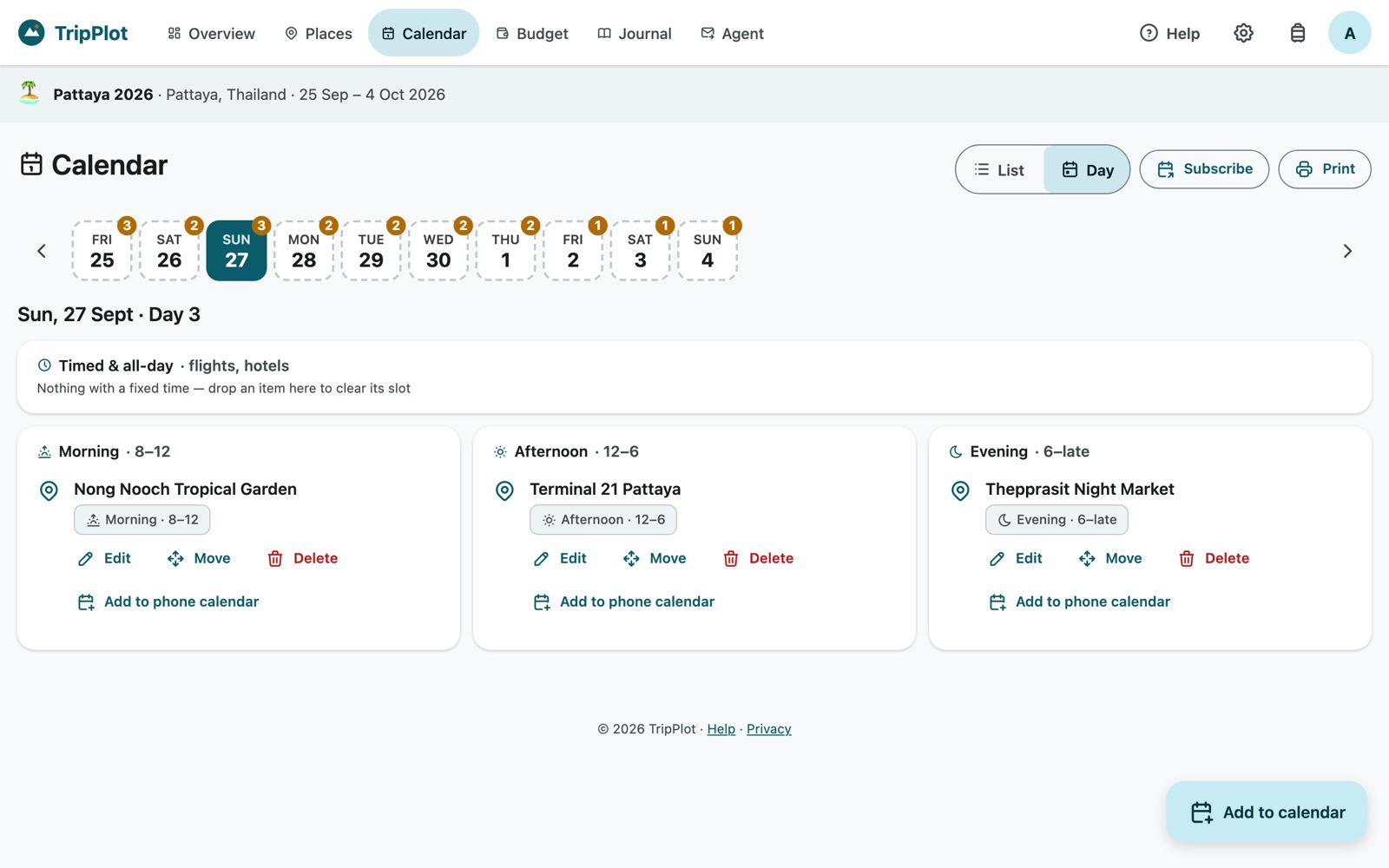 Plan the daysMorning to evening
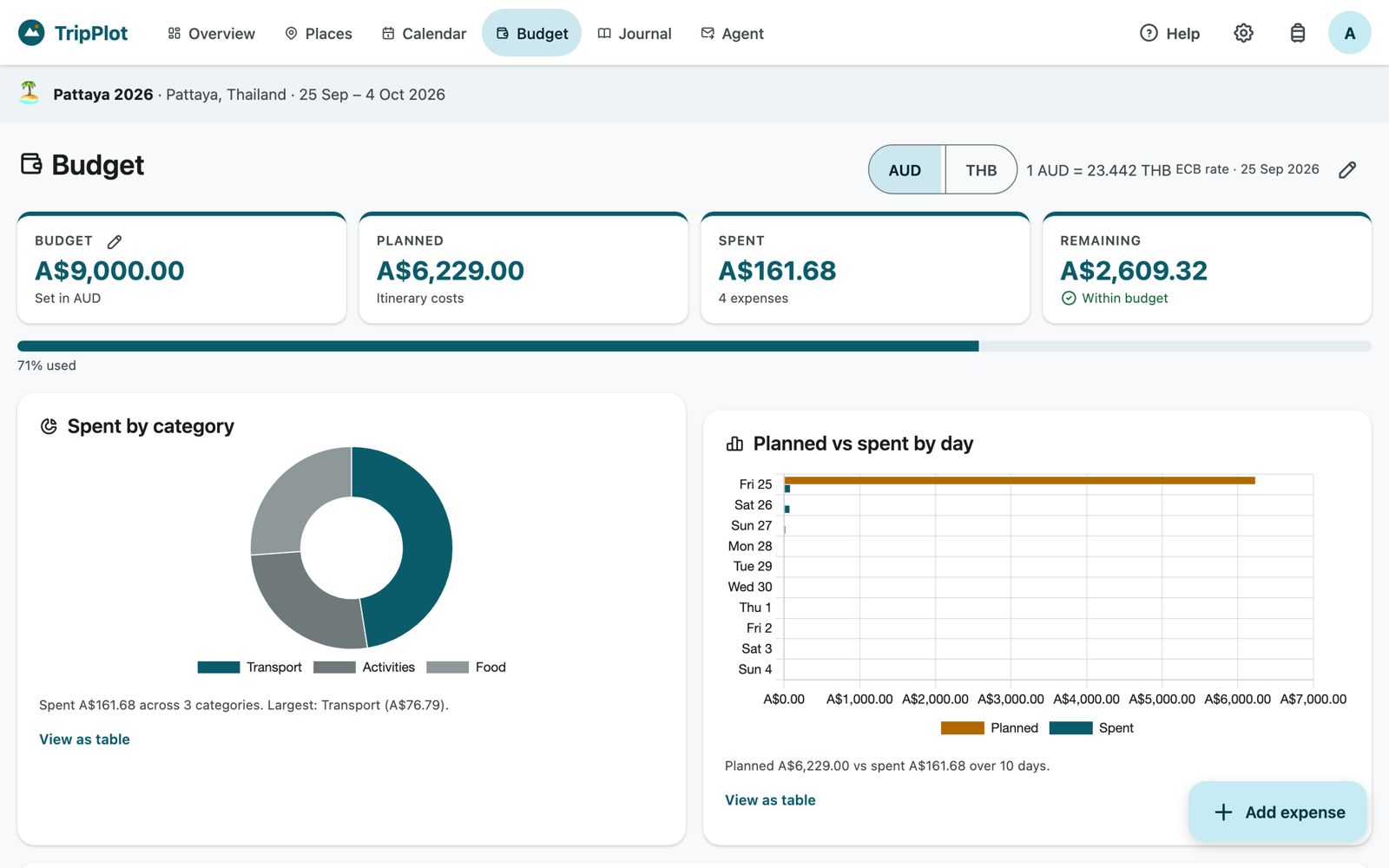 BudgetPlanned vs spent
 JournalShare with family
Places
Collect restaurants, sights and bars. Search, browse nearby, paste a Google Maps link, or tap the map.
Calendar
Drop places into mornings, afternoons and evenings; see it all in your phone's calendar.
Budget
Planned costs plus what you actually spend, in your currency and the local one.
Journal
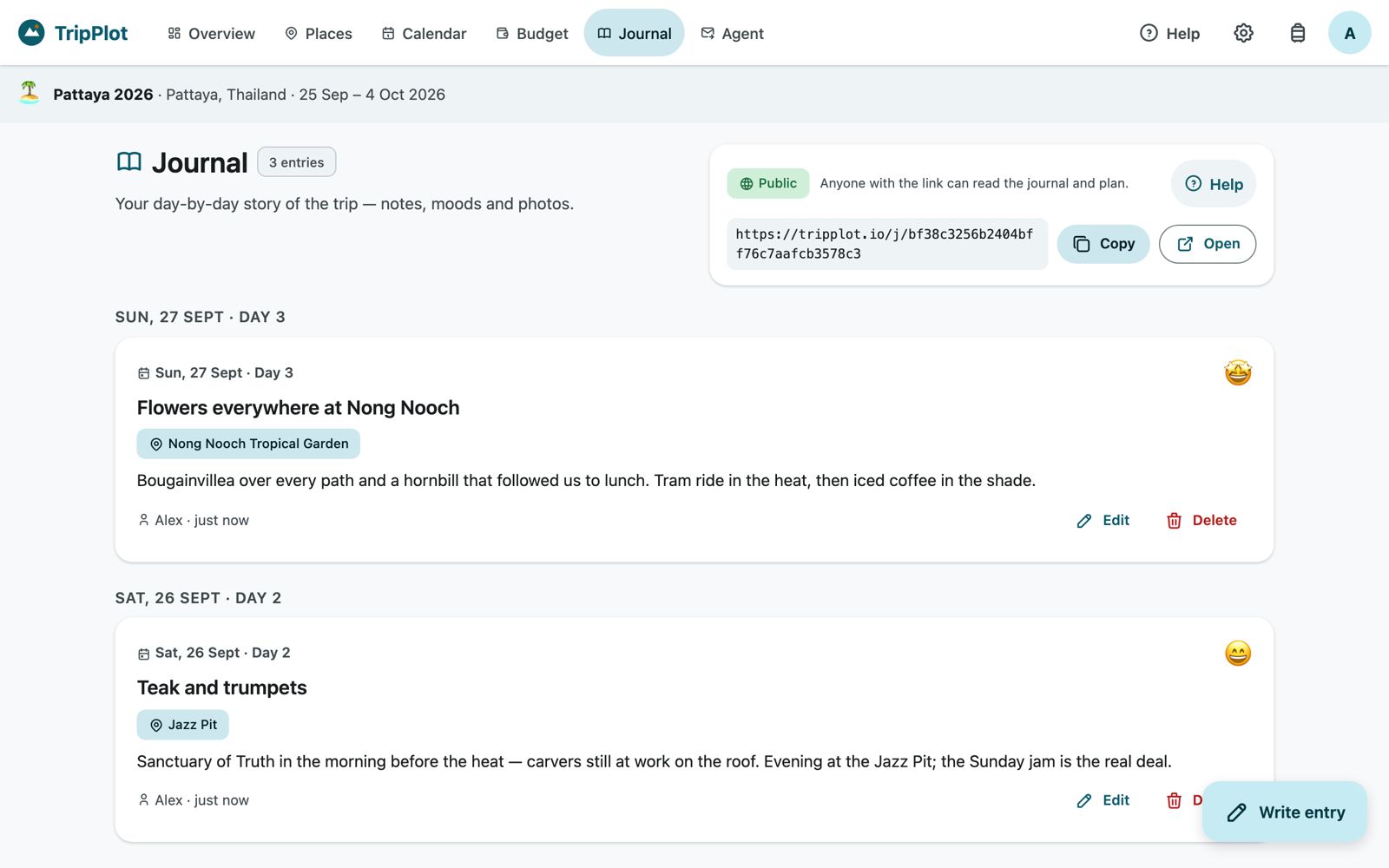
Photos, moods and notes each day, with a private link for family and friends.
Agent
Send your plan to a travel agent for a quote, then import their booking back in.
Your first trip
From signing up to a planned itinerary — the order most people do it in.
Create an account
~2 minGo to tripplot.io and press Start planning — free (or tripplot.io/register).
- Enter your name, email and a password of at least 8 characters.
- Press Create account. You go straight to creating your first trip.
Next time, use Log in. Forgot your password? Forgot password? on the login page emails you a reset link that works for two hours.
Create a trip
~2 min- On My trips press New trip.
- Give it a title (“Pattaya 2026”) and tap the icon to pick an emoji.
- Start typing the destination. Suggestions appear as you type; pick one. TripPlot fills in the country, the local time zone and the local currency — and looks up today's exchange rate for you. If you just type the place without picking, TripPlot looks it up when you save and still sets the currency and time zone (a time zone you chose yourself under More options is kept).
- Choose the start and end dates.
- More options (optional, editable any time): time zone, home and local currency, the exchange rate, a total budget, and notes. The local currency follows the destination while Use the destination's currency is on; turn it off to choose your own (say, US dollars in Cambodia).
- Press Create trip. You land on the Places page, ready to add your first spot.
Nothing is set in stone: dates, budget and exchange rate can all be changed from the trip's Settings (cog icon, top right). Change the destination to another country and the local currency and rate follow it; a message offers Undo for 10 seconds. Undo keeps the old currency and stops it following the destination. Expenses you already logged keep their amounts.
Find your way around
~2 min| Tabs (top bar) | Inside a trip: Overview · Places · Calendar · Flights · Stays · Weather · Budget · Journal · Agent. The highlighted one is where you are. |
|---|---|
| Bottom bar (phone) | Overview, Places, Calendar, Budget and Journal move to a bar at the bottom, in thumb reach. Flights and Stays open from the Flights & stays card on the Overview; Agent is under its quick actions. |
| Cog | Trip settings: dates, currencies, budget, travel companions, calendar sync, journal sharing, delete trip. |
| Suitcase | My trips — every trip with its status and counts. |
| Your initial | Account: name, home currency, language, password, plan, log out. |
| Help | Help for the page you're on, this guide, the iPhone guide and support. Panels such as Add place and Add expense have their own Help button; help opens beside the panel, so nothing you've typed is lost. |
| Trip banner | Under the tabs: the trip's name, destination and dates, so you always know which trip you're in. A View only chip shows if you were invited as a viewer. |
| Round button, bottom right | The main action for the page: Add place, Add to calendar, Add expense, Write entry. It opens a panel that slides up. |
The Overview is the first page of every trip: four tiles (day of the trip or days to go, places saved and visited, items planned, budget left — each is a shortcut), a map of every place, and Coming up, the next few things in your calendar.
Collect places
~10 minPlaces are your wish-list — restaurants, sights, bars, markets. Save them first; decide which day later. Press Add place. The panel has four tabs:
- Search — type a name (“Hilton Pattaya”, “Jazz Pit”). Results come from OpenStreetMap, near your destination. Pick one and the name, address, area, category and often the website and opening hours are filled in. Check them, then Save place.
- Browse nearby — no list yet? Under the search box tap Food, Cafés, Sights, Museums, Bars, Parks or Markets to see named places around your destination, nearest first.
- Paste link — found it in Google Maps? Share → copy the link → paste. TripPlot pulls out the name and location.
- Tap map — press Pick a spot on the map, zoom in and tap a place's icon. A pop-up shows its name, type and hours so you can check it's the right one, then Save place. For somewhere without a name (a beach spot, a friend's villa) choose Name it myself.
- My trips — copy places from another of your trips.
More options holds the address, website, Maps link and which parts of the day the place suits (morning / afternoon / evening) — that controls the slots offered when you add it to the calendar.
Keep your places organised
~3 minEach place card shows its category, area, hours and price notes, and:
- Maps — opens the spot in Google Maps for directions.
- Add to calendar — next step.
- Visited — tick it off during the trip; visited places fade on the map and sort to the bottom.
- Pencil to edit, bin to delete (with Undo). Added by … shows when a travel companion added it.
Filter chips at the top narrow by category (with counts) or show only Visited; the search box filters by name, area or notes. Switch List | Map to see everything on a map — tap a marker to find its card. Map labels are in your account's language wherever the map has a translation (English street names in Bangkok, for example).
Build the calendar
~10 minFrom a place
- On a place card press Add to calendar.
- Pick the day and a time of day — Morning (8–12), Afternoon (12–6) or Evening (6–late).
- If the place's opening hours are known, each slot says Opens 10:00, Closes 14:00 and so on, and times when it's closed are greyed out. Closed all day? Pick another day, or Add anyway — map hours are sometimes out of date.
- Press Add. The card now says In calendar: Tue 29 Sept (evening).
Anything else
On the Calendar page press Add to calendar (or + Add on a day) for an activity, a meal, transport, a flight (airports, flight number, airline, cabin, booking reference), a hotel (check-in and check-out) or a note. Choose a slot, or tick Set exact time. The cost field feeds the Budget's “Planned” figure.
Two views
- List — every day in order, morning → afternoon → evening. Empty days are listed too, so you can see gaps.
- Day — one day at a time in three columns plus a Timed & all-day box for flights and hotels. The strip at the top shows every day with how many things are planned; use the arrows or tap a day.
Moving things: on a computer, drag a card onto another day or slot; on a phone, use Move. Edit changes details; Delete has Undo. Print gives a clean paper copy; Add to phone calendar on any item downloads just that event.
Put the plan in your phone's calendar
~3 minEach trip has a private calendar feed. Subscribe once and every change you make in TripPlot shows up in your phone's calendar — flights with booking references, hotel nights, every activity. Pro feature.
iPhone, iPad or Mac
- Calendar → Subscribe (or Settings → Calendar sync).
- Press Add to iPhone / Mac Calendar. The Calendar app asks to subscribe — tap Subscribe, then Add.
The iPhone refreshes subscribed calendars about once an hour; pull down in Calendar to refresh sooner.
Google Calendar
- Copy feed URL.
- On a computer, Google Calendar → next to Other calendars press + → From URL → paste → Add calendar. (Add to Google Calendar tries to open that screen for you.)
Google refreshes feeds every 12–24 hours — a Google limit.
Flights and stays
List the options, see what each does to your budget, then pick. The Pattaya way, without the spreadsheet.
Compare flights
~10 minThe Flights tab collects the ways you could get there and back (and trains, buses or ferries during the trip), so you can compare them side by side before you book. On a phone, open it from the Flights & stays card on the Overview.
- Search. Search for flights fills in your airports, trip dates and cabin, then opens Skyscanner, Google Flights, Momondo or Cheapflights with that search ready. Several airports near your destination? Tap the one you want under Fly into.
- Add an option. Add an option (or Add it as an option under the search). Choose Return, One way (getting there or coming home) or During the trip, the airline and cabin (Economy, Premium economy, Business or First), then each flight: from, to, date, times and flight number. Add a connection adds a stopover. Leave the airline blank and it's filled in from the flight number (QF → Qantas).
- Price. Type the total you'd pay, in your home or the local currency.
- Got a quote from your agent? Import an itinerary and choose Options to compare (see Import): their flights land here next to the ones you found.
Pick, and see the difference
Each option shows what picking it would do: “A$420 more than Jetstar · Return · leaves A$2,700”, or a red warning if it would take you over budget. Pick this option makes it your choice: it goes into your Calendar (every flight, with times) and into Planned on the Budget page. Picking a return ticket replaces any other way there or home; picking a one-way “getting there” leaves your way home as it is. The line at the top shows what's still open: Getting there and Coming home.
Flights already in your calendar (typed in the calendar or imported as booked) are listed under Already in your calendar.
Choose where to stay
~10 minThe Stays tab is your short list of hotels, apartments and hostels. Add every one you're considering, then pick one for each part of the trip.
- Find some. The Booking.com, Trivago and Expedia buttons open a search for your destination and dates.
- Paste the link. In Add a stay, paste a link from Booking.com, Trivago, Agoda, Expedia, Hotels.com, Trip.com or Airbnb: the name, dates and site fill in, and the hotel is found on the map near your destination. On a phone: Share → Copy link in the booking app.
- Or type the name. Matches near your destination appear, nearest first; choose one to add its address and map pin.
- Add the price you saw: the total, or Per night and TripPlot multiplies it by the nights.
Each card shows the dates, nights, price per night and the budget difference against your current pick. Pick this stay makes it your choice for those nights (another stay for the same nights is unpicked), puts it in your Calendar and in Planned. A line at the top counts the nights that have a stay and lists the ones still open, handy when you move between cities.
Getting there from the airport
Open Getting there on a stay to see how far it is from the airport you land at (by road, with a rough time) and a link to compare routes and prices on Rome2Rio. Add a way to get there: airport bus, train or metro, taxi, rideshare (Grab, Uber), private transfer, hotel shuttle or ferry. The usual choices for that distance are marked Usual. Say whether it's to the stay, from the stay, or both ways, and the price. A picked one counts in your budget while its stay is picked, and appears in the Calendar on arrival and departure day.
Money and memories
Budget before and during the trip; the journal during and after.
Budget
~5 minFour tiles: Budget (pencil, or Set your budget: type it any way you like, “5000”, “5,000” or “A$5,000”, then Save), Planned (what you have picked or put on the calendar but not paid yet: flights, stays, airport transport, tours), Spent (expenses you log, and anything marked paid) and Remaining. The bar fills as you commit money and turns red with a warning if you go over.
Two currencies: the AUD | THB switch redraws every figure. The rate beside it (“1 AUD = 23.442 THB · ECB rate · 25 Sep 2026”) is the published European Central Bank rate from when you created the trip or last changed its currency. Press ↻ to update it to today's ECB rate, or the pencil to type your own. The ECB doesn't publish every currency (Vietnamese dong, Cambodian riel, Lao kip, Myanmar kyat…); for those, type the rate once.
Charts: Spent by category and Planned vs spent by day. Each has View as table if you prefer numbers.
Paid: from planned to spent, once
Planned costs lists every cost you have planned: picked flights and stays, their airport transport, and calendar items with a cost. When you pay for one, switch on Paid. TripPlot logs it as an expense (marked From plan) and moves the amount from Planned to Spent, so it's never counted twice and you don't type it again. Paid a little more or less than planned? Edit that expense. Switch Paid off, or delete the expense, and it goes back to Planned. You can also Mark paid on a calendar item, or on a stay or flight card.
Logging an expense
- Add expense.
- Type the amount (a big number keypad on phones) and choose the currency you actually paid in: your home currency or the local one.
- Tap a category, add a short description, check the date.
- Tick Add another after saving to keep the panel open for a run of receipts. Save.
Each expense keeps the home-currency value from when you entered it — matching your card statement even if you change the rate later. Editing an expense keeps the rate it was logged at, and an expense logged before the trip's currency changed keeps its own currency.
Journal and sharing
~5 minWriting an entry
- Write entry. The day defaults to today while you're travelling.
- Tap a mood under How was it?, add a title and as much or as little as you like.
- Optionally choose Where were you? from your places.
- Add photos from the camera or photo library, then Save entry.
Framing photos: after picking a photo choose its shape — 16:9 (the default), 4:3 or 1:1. Drag the photo (or use the arrow keys) and the zoom slider to choose what shows; Rotate frame flips a portrait shot. Photos are shrunk before upload, so full-size phone photos go up quickly.
Sharing with family and friends
In the Journal (or Settings → Share the journal) turn on the public link. Anyone with it can read the journal, see the photos, a map of your places and a compact day-by-day plan — no account needed. Copy it into the family chat once; they can check back all trip.
- Turn it off any time; the link stops working immediately.
- Readers can't change anything or see your budget.
- A Private / Public chip always shows the current state.
Pro feature; Free accounts keep the journal private.
Working with a travel agent
Let a professional price the flights and hotels, then bring their booking back in.
Ask for a quote
~5 min- Open the Agent tab and enter your travel agent's name and email. TripPlot remembers the agent you used last time.
- Departing from remembers your last choice; Use my location suggests the nearest airports (“Canberra (CBR) · 7 km”). Or type a city.
- Set the number of travellers and write a message: budget, cabin class, hotel preferences, must-haves.
- Leave Include my places wish-list ticked so the agent can suggest hotels near what you want to see.
- Check What will be sent, then Send quote request.
The agent gets a tidy email with your trip, day-by-day plan and wish-list, plus attachments for their own tools; you get a copy. Their reply comes straight to your email. Want a second opinion? Send another.
Import the agent's itinerary
~5 minWhen the agent replies with a booking, don't retype it:
- Import itinerary — drop an airline e-ticket PDF, a hotel voucher PDF, or the agent's .xlsx / .csv on the box. (Scanned PDFs have no text to read; paste the email text instead.)
- Or Paste text — lines such as “Flight QF2310 CBR-BNE 03/07/2026 08:50-10:30 PNR IPAJQY”.
- Preview import. Each flight and hotel is marked New, Duplicate (already in your calendar — unticked for you) or Outside trip dates (tick Extend trip dates to fit if the agent moved your dates).
- Choose Add these as: Booked puts them straight into your Calendar; Options to compare adds the flights as one option on the Flights page and each hotel on the Stays page, next to what you found yourself, with their budget impact.
- Untick anything you don't want, optionally Replace existing flights, then Import.
Flights and hotel nights appear in your Calendar with times and booking references — and in your phone's calendar feed.
Together, account and phone
Plan with others
~3 minTrip Settings → Travel companions: enter an email, choose a role, press Invite.
| Companion (default) | Sees the plan, places, calendar and journal, and can add and edit places. Never sees the budget, expenses or item costs; can't change the calendar, journal or settings. For friends coming on the trip. |
|---|---|
| Editor | Can change places, calendar items, expenses and the journal. For the partner you're planning with. |
| Viewer | Sees everything except settings. Can log expenses on the Budget page and edit or delete their own, but can't change anything else. For a parent who wants to follow along. |
They get an email with a link; without an account they create a free one with that email and the trip is waiting. Remove someone with the ✕ next to their name. Inviting companions is a Pro feature.
Planned the same city on your own?
In the shared trip, Places → Add place → My trips, choose your trip, tick places, Add (places already there are skipped). Later, editing one of those places in your own trip offers Update in Group trip too, and adding a new place offers Also add to Group trip. Nothing changes in the shared trip unless you tap.
Account and plans
~2 minTap your initial (top right) for Account: name, home currency, language (Chinese, Japanese and Spanish are coming), password, and Log out.
| Free | Pro | |
| Trips | 1 at a time | Unlimited |
| Places per trip | 30 | Unlimited |
| Calendar, budget, journal, agent quotes | ✓ | ✓ |
| Phone calendar sync | — | ✓ |
| Share the journal by link | — | ✓ |
| Invite companions | — | ✓ |
Founding members: sign up by 30 November 2026 and your first year of Pro is free — it's automatic. Account shows the date it's free until. After that Pro is A$29 a year.
Give 50%, get 50%: Account has your referral link and code. Tap Copy link or Share and send it to friends. They get 50% off their first paid year of Pro. Until 30 November 2026, each friend who signs up with your link and starts planning a trip gives you 50% off your second year: refer two and it's free. Account shows how many have counted so far. Friends who join later count when they first pay. Friends can also type your code under Have a referral code? when they sign up.
Lost your iPhone or iPad? Under Advanced on the Account page, Lost my iPhone → Sign out of the app everywhere signs TripPlot out on every device, for security. Your trips stay in your account; sign in again with your email and password.
On your phone
~3 minEverything works in a phone's browser: search for places while you're standing outside them, snap a photo straight into the journal, log a taxi fare before you forget it. The tabs move to a bar at the bottom, and money is entered with a big number pad.
- iPhone (Safari): Share → Add to Home Screen. It opens full-screen like an app.
- Android (Chrome): ⋮ → Add to Home screen / Install app.
Tips & shortcuts
Undo is everywhere
Deleted the wrong thing? Ten seconds to tap Undo.
Set a place's slots
Mark a jazz bar “evening only” and it's never offered for a morning.
Compare before you book
Add every flight and hotel you are weighing up on the Flights and Stays pages; each shows what it does to your budget. Switch on Paid when you book.
Quick actions
The Overview's quick actions open the right page with the add panel already open.
Keyboard
Escape closes any panel; the ✕ or tapping the dark background does the same on touch.
Status
Planning → Booked → Active → Done in Trip settings is just for you; it shows on My trips.
Dark mode
Follows your device setting automatically.
Calendar → Print gives a clean paper backup without buttons.
Questions
Is my data private?
Yes. Trips are visible only to you and the people you invite. The journal is private unless you turn on the public link, which you can switch off any time. See the privacy page.
Can I use TripPlot for a trip that's already booked?
Absolutely — that's how it started. Add your flights and hotel to the calendar (or import the agent's booking), then build the fun around them.
Why can't search find a place I know exists?
Search uses OpenStreetMap, which is excellent for sights, hotels and most restaurants but can miss brand-new or very small venues. Use Paste link from Google Maps or Tap map instead. (The iPhone app also searches Apple Maps.)
Does changing the exchange rate change my old expenses?
No. Each expense keeps the home-currency value from when you entered it, even if you refresh the rate or change the destination. The rate is used for new expenses and the currency switch.
My phone calendar hasn't updated.
Subscribed calendars refresh on a schedule (iPhone about hourly, Google up to a day). Pull to refresh in the iPhone Calendar app.
Can two people edit at the same time?
Yes. Changes save instantly; if you both change the same item within seconds, the last save wins — refresh to see the other person's changes.
How do I delete a trip or my account?
Trip settings → Delete trip removes the trip and everything in it (you're asked to confirm). To delete your account, use the iPhone app (Account → Delete account) or email support@tripplot.io.